SMART Disk Health
Spot failing hard drives and SSDs early from SMART data, temperatures and reallocated sectors.
The SMART Disk Health check reads the SMART data (Self-Monitoring, Analysis, and Reporting Technology) of a device's hard drives and SSDs and warns you before a drive fails — often days or weeks in advance. It runs on Windows, Linux, and macOS every 60 minutes; the interval is not configurable in the check editor. SMART data is read locally by the agent, so no network traffic or special firewall rules are required.
Prerequisites
- SMART data comes from a physical disk. On Windows, the check also reads a drive's health from Windows Storage when that drive returns no SMART data, so Windows virtual machines can still report a health status. On Linux and macOS virtual machines, virtual disks expose no SMART data and the check reports no results for them.
- On Linux: the check uses
smartctlfrom the smartmontools package. The octoja agent auto-installs it before the first run using whichever package manager is present (apt-get, dnf, yum, pacman, apk, or zypper). Only if none of these is available and the check reports thatsmartctlcould not be installed do you need to installsmartmontoolsyourself (for examplesudo apt install smartmontoolson Debian/Ubuntu). - On Windows and macOS: no additional software is needed.
Steps
- Go to Devices and open the device.
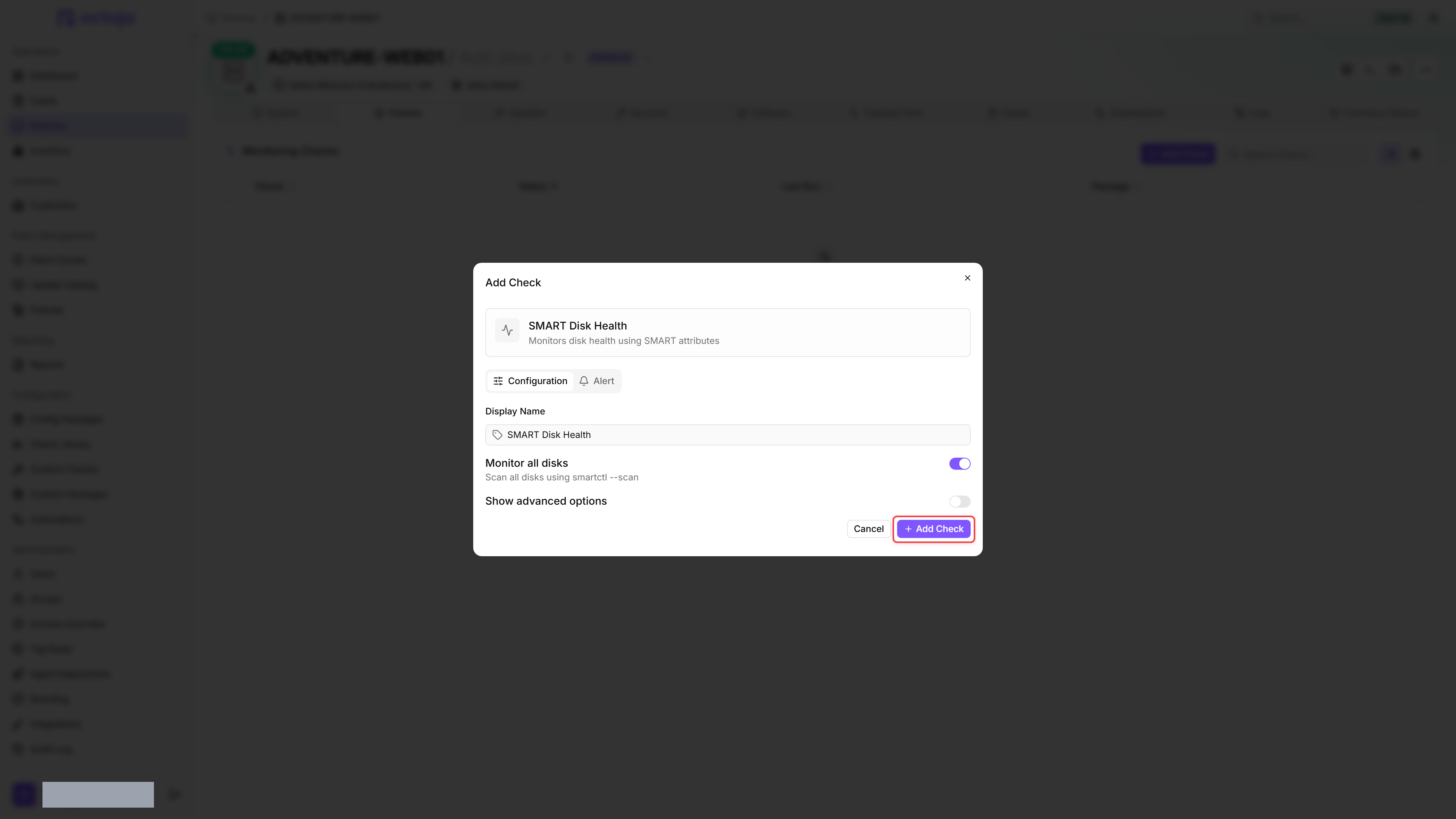
- Click the Checks tab → Add Check → SMART Disk Health.
- Monitor all disks is on by default, which covers every drive on the device automatically. To restrict monitoring instead, turn it off and add specific disk paths to the Disks to monitor list (for example
/dev/sdaon Linux,/dev/disk0on macOS, or/dev/pd0on Windows). - Click Add Check to confirm.
After the first check interval, the result appears in the device's Checks tab.
Settings
All threshold fields only appear in the check editor after enabling Show advanced options. Drives that report no rotation rate are treated as solid-state and use the SSD / NVMe thresholds.
Results
A device with no SMART-capable disks — auto-discovery finds none, or Monitor all disks is off and the explicit disk list is empty — reports OK, not a Warning. The same applies when disks were found but none of them returned usable SMART data: those disks are dropped from the report and the check still reports OK. On Windows this is the state reached once the Windows Storage fallback has also come up empty.
Detecting a disk that is no longer present is not part of this check. It lives in the separate Disk Presence check, so a removed or decommissioned drive does not keep the SMART check red while the remaining disks are healthy. Add that check as well if you want an alert when a disk is pulled or dies.
Monitored SMART attributes
SSDs and HDDs both support SMART but report different attributes. Both are interpreted correctly.
Automatic discovery
- SMART data is only meaningful for physical disks. Virtual disks typically return no usable data; when Monitor all disks is enabled, auto-discovery drops devices it cannot open or identify — empty card readers and unpopulated USB enclosures — along with devices that expose no SMART self-assessment at all, such as optical drives and simple USB bridges. Beyond that it does not validate that a device is physical.
- During automatic Windows discovery, SCSI disks are evaluated directly through Windows storage information rather than SMART passthrough queries. RAID volumes and scan targets that cannot be classified safely are omitted. This safeguard does not apply to explicitly entered disk paths; prefer the appropriate controller check on RAID hosts.
Windows Storage fallback
On Windows, a disk that returns no SMART data is graded from Windows' own storage information instead — that also covers every physical disk when the scan finds nothing to read. Such disks are listed as PhysicalDisk<number> under the name Windows reports for them, and are graded on the health state Windows reports plus the same temperature thresholds, with the media type Windows reports deciding whether the HDD or the SSD / NVMe values apply. Reallocated sectors and media errors are not part of this data, and a temperature below 1 °C or above 149 °C is treated as implausible and shown as a dash.
The fallback skips disks with bus type RAID, and disks with neither a known health state nor a temperature reading. For the remaining disks, Unknown health means unavailable rather than failed; available temperature readings are still evaluated. Also use the controller's management tool or an appropriate RAID check for drives behind a hardware RAID controller.
What to do when you get a SMART alert
- Back up the data on that drive immediately if backups are not already in place.
- Order a replacement drive.
- Plan the swap during a maintenance window to minimize downtime.
SMART alerts are early warnings, not emergencies — but do not ignore them. A drive that is reporting problems will usually continue to degrade. If the overall SMART status reports Fail, replace the drive as soon as possible.
Was this helpful?
Still need help? Ask the team