System Updates
Detect missing operating system updates on Windows, Linux, and macOS and get alerted when too many matching updates are pending.
The System Updates check tells you whether a device has missing operating system updates. It reports counts and categories of missing patches and raises warnings and critical alerts based on your thresholds. The check runs on Windows, Linux, and macOS (x64 and ARM64 on each) every 6 hours by default. On Windows it uses the Windows Update API; on Linux it queries the native package manager (apt, dnf, yum, zypper, or pacman); on macOS it uses softwareupdate. The agent detects the operating system automatically, so no manual configuration is needed.
Steps
- Go to Devices and open the device.
- Click the Checks tab → Add Check → System Updates.
- Configure Warning threshold, Critical threshold, and, if needed, Count security updates only (Linux/macOS).
- Optional — click Show advanced options for the Windows-only settings Minimum update age (days, Windows), Severity filter (Windows), and Include optional / preview updates (Windows).
- Click Add Check.
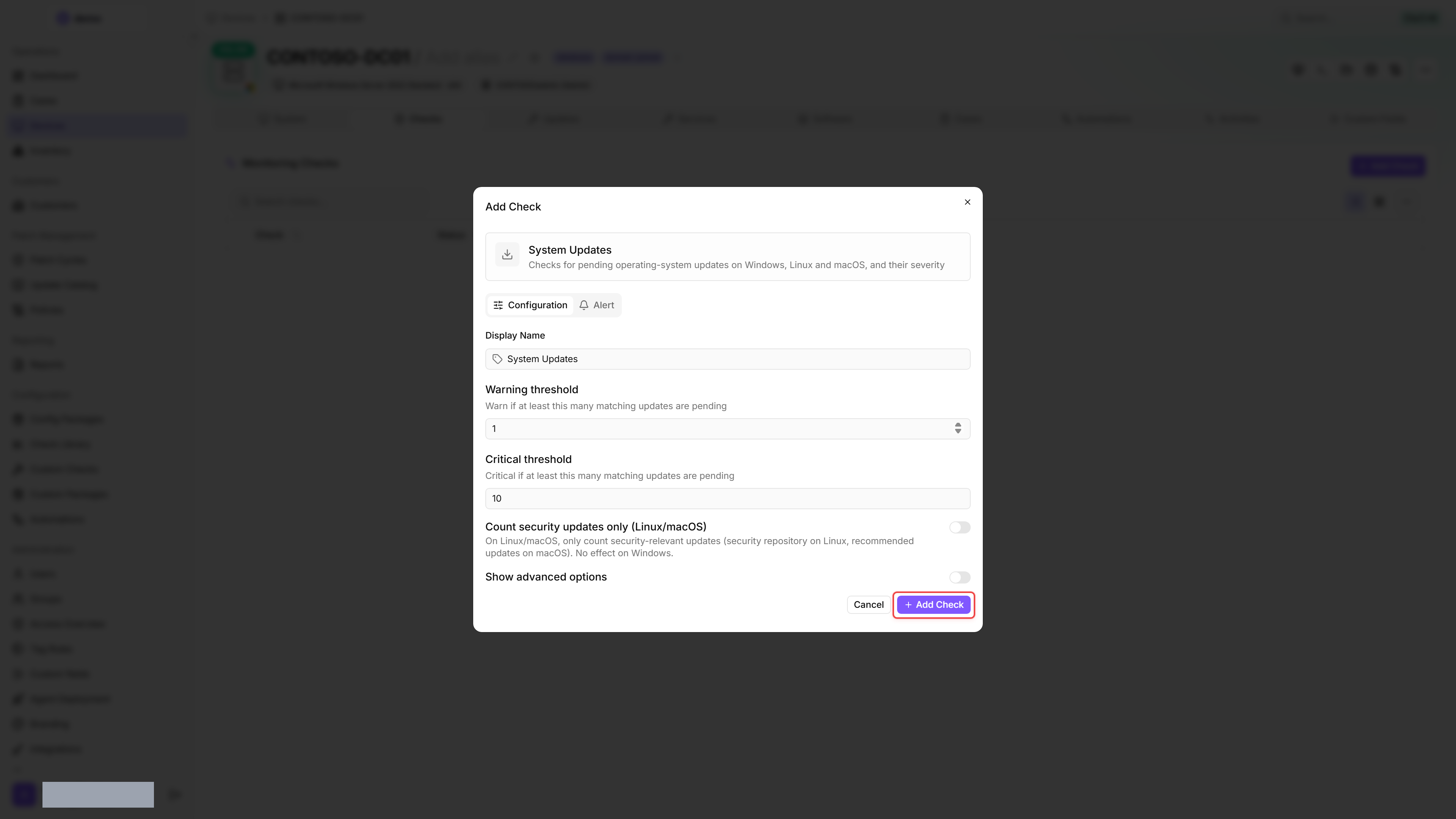
Settings
Both thresholds compare against the number of matching updates, not the raw pending count. On Windows an update matches when it passes the Severity filter and the Minimum update age. On Linux and macOS every pending update matches, unless Count security updates only is on — then only the security-relevant ones do.
If the warning threshold is configured higher than the critical threshold, the check swaps the two values at runtime so the critical threshold remains the upper bound.
MSRC severities (Windows)
On Windows, pending updates are classified by their Microsoft Security Response Center (MSRC) severity, and the Severity filter field controls which severities are counted toward the thresholds. Linux and macOS do not expose MSRC severities — there the Count security updates only option governs which updates count instead.
Results
The check raises a warning or critical alert as soon as at least as many matching updates are pending as set in Warning threshold or Critical threshold. If the check cannot run at all — no supported package manager on Linux, softwareupdate unavailable on macOS, an unsupported platform, or unparseable tool output — it reports an Error result with a matching message instead of an update count.
Each run produces:
The check reports pending updates. Installing them is a patch policy's job — rollout is configured under Patch Management → Policies. A device's Updates tab lists its pending updates and, for each one, when a policy has it scheduled.
How updates are detected
- On Windows the check uses the same update mechanism as the Windows Update settings panel.
- If your organisation manages updates through WSUS (Windows Server Update Services), the check can still report updates your WSUS administrator has not approved: besides the WSUS server it also searches Windows Update and Microsoft Update, provided the device can reach them.
- On Linux, the check does not refresh the package sources itself. apt, dnf and yum evaluate the most recently downloaded package lists or the local metadata cache. If these are not refreshed regularly, the check reports too few updates.
Update Catalog
Independently of the per-device check, octoja surfaces a fleet-wide view of every update under Patch Management → Update Catalog. The catalog covers Windows and macOS updates. Open an update from the catalog to see whether it is safe to roll out: the detail page shows its advisories, its block status, and the status of the update on every device in scope.
Advisories on an update
octoja merges advisory intelligence for each update so you can spot a problematic patch before it reaches your devices.
Block a problematic update
If an update is causing trouble, you can stop octoja from installing it anywhere. Open the update from the Update Catalog and click Block update — with an optional reason and an optional expiry date. Blocks are keyed by KB number, so the button appears on updates that carry one. Blocking and unblocking need the Patch Policy Management permission.
The block is tenant-global. It applies everywhere in your environment, not to a single patch policy. Once unblocked, the update becomes eligible for installation again according to your patch policies.
Withdrawn updates
An update's detail page lists every device in scope together with the status of the update on that device. A macOS device shows Withdrawn when softwareupdate no longer offers the update at install time — Apple has pulled it, or a newer update has replaced it. The same status appears in the patch cycle results, where it counts as a non-failure, so a cycle that hits it still completes cleanly.
Tips
- Start with the defaults (warning at 1, critical at 10) and adjust based on your environment.
- Use a config package to assign the check to all devices at once, rather than configuring each device individually.
- Review the Updates tab on the device detail page to see which specific updates are pending.
- Before approving a widely affecting update, check the Update Catalog for known issues or a high Reported by other octoja users count.
FAQ
Why does the Windows Update search time out after 300 seconds while the Health check succeeds?
Why does the Windows Update search time out after 300 seconds while the Health check succeeds?
The update search exceeded the check's internal time limit, which is not configurable. Windows Update Agent Health reads history and policy information, not the same live scan, so it can succeed independently.
Check the configured update source and network access. If the timeout persists, send support the attempt time, agent logs and Windows Update event errors.
Should I delete WindowsUpdate_OctojaBackup to repair an update search?
Should I delete WindowsUpdate_OctojaBackup to repair an update search?
No. HKLM\SOFTWARE\Policies\Microsoft\Windows\WindowsUpdate_OctojaBackup preserves the original update policy for restoration. Its presence is not evidence of a failed search, and an address stored there does not establish which update server Windows currently uses.
Was this helpful?
Still need help? Ask the team