Folder Size
Detect growing log, cache or data folders before they fill up the disk.
The Folder Size check measures the total size of specific directories and alerts when the size reaches or exceeds the configured thresholds. This helps you detect runaway log files, cache growth, or uncontrolled data accumulation before the disk fills up. The check runs on Windows, Linux, and macOS (x64 and Arm64 each) every 60 minutes (hourly). The cadence is declared by the check itself and is not exposed as a per-instance configuration field.
Prerequisites
- You need the Monitoring Check Management permission.
- The target device must have a connected agent.
- The agent process must have read permission for the directory and its contents.
Steps
- Go to Devices and open the device.
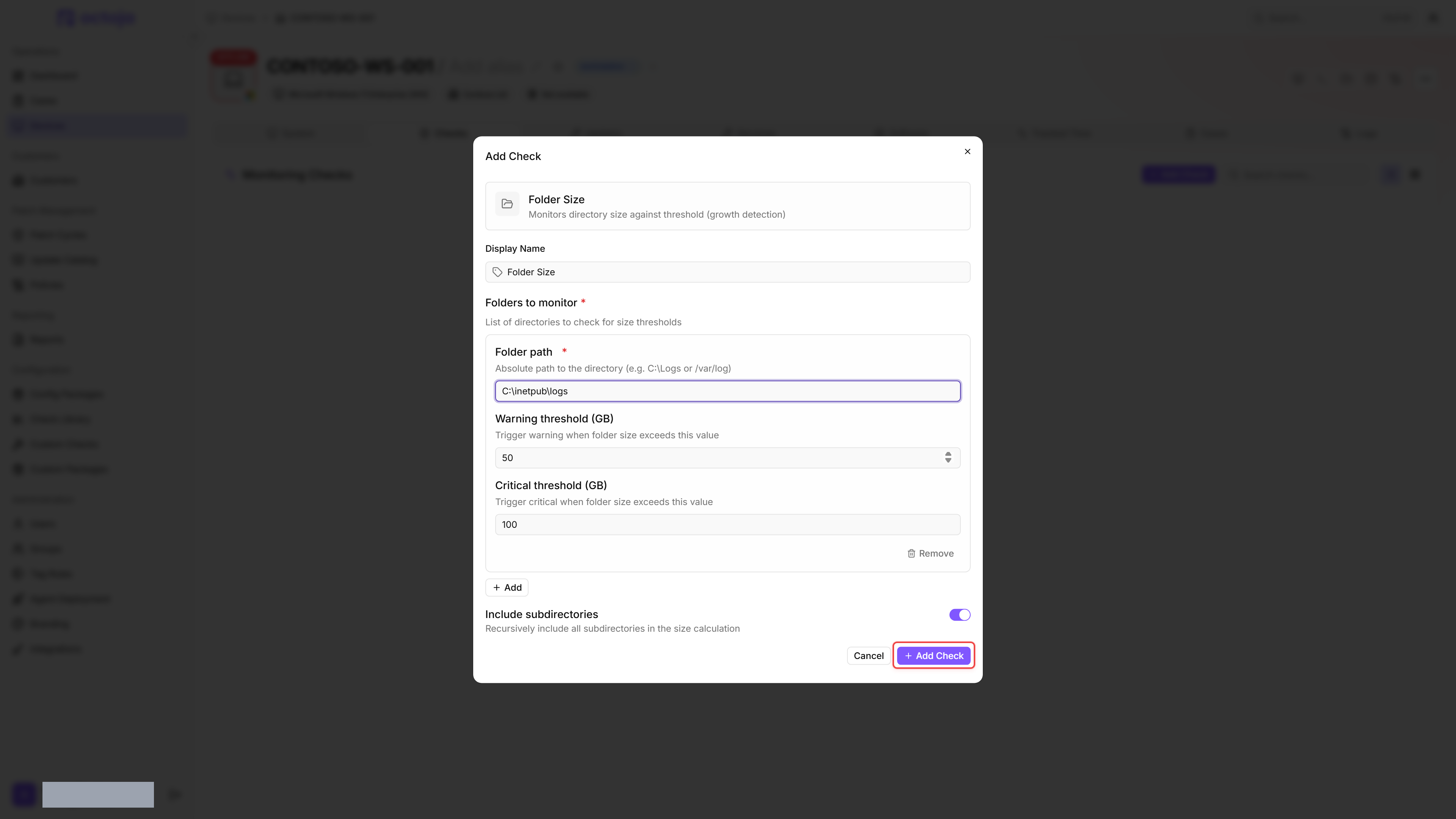
- Click the Checks tab → Add Check → Folder Size.
- Under Folders to monitor, add one or more directories, each with a Folder path and its own thresholds — for example
C:\inetpub\logswith Warning threshold 50 and Critical threshold 100 (GB). - The Include subdirectories toggle is global and applies to every folder in the check. It is enabled by default — disable it if you only want to measure top-level directories.
- Click Add Check.
After the first check interval, the result appears in the device's Checks tab.
Settings
If the warning threshold is set higher than the critical threshold, the agent silently swaps the two values before evaluating — a misconfigured pair still produces useful results, but the configuration screen is the source of truth, not the alert payload.
Results
Each folder is evaluated on its own; the overall check result is the worst per-folder result.
If no folders are configured, the check reports Warning (not Failure and not OK) to surface the empty configuration without raising an incident.
For each folder, the check collects:
- Size per monitored folder (GB and bytes) — there is no aggregate total across folders
- File count per folder
- Per-folder count of files that could not be read (access denied) — surfaced in the result detail as "N files inaccessible (access denied)"
- Per-folder result status and any error message recorded while scanning
When a folder records an error, the result detail shows that message in place of the folder's size and file count.
Notes
- The check calculates the size by summing all file sizes in the directory tree. For directories with millions of files, execution may be slower, but a single folder walk normally finishes well within the interval. Expect the result to update less frequently than with faster checks.
- If the check hits a subfolder it cannot read while scanning, it stops measuring that folder at that point. Size and file count then only include the files counted so far, and the result detail shows the inaccessible-files note.
- Symbolic-link traversal follows .NET
DirectoryInfodefaults and is not explicitly enabled or disabled by the check. Behaviour can differ between Windows, Linux, and macOS — if symlinks under a monitored path may point to large external directories, validate the resulting total against your expectation. - Combine this check with a disk space check for complete storage monitoring. The disk space check tells you when the drive is filling up; the folder size check tells you what is filling it.
Was this helpful?
Still need help? Ask the team